
Application Description
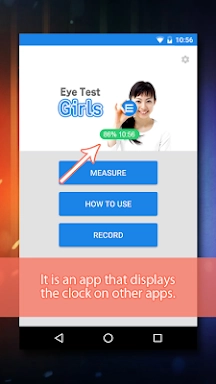
Overlay Digital Clock is a minimalist and transparent desktop clock application that helps you stay on time without cluttering your screen. It floats elegantly over other windows, allowing you to keep track of time while focusing on your tasks. Combining functionality with subtle design, it offers key features including current time, date display, and adjustable transparency settings. Ideal for anyone who prefers a visible yet discreet clock at all times.
Key Features of Overlay Digital Clock
- Customizable Clock: Easily drag and reposition the clock anywhere on your screen to suit your layout and workflow preferences.
- Timer Function: The built-in timer automatically shuts off when finished, helping you manage tasks and daily routines seamlessly.
- Battery Monitor: Quickly check your device’s remaining battery level directly from the app, so you never lose track of your power status.
- Save Clock Position: Save your preferred clock location for quick access and consistency every time you use the app.
Tips for Users
- Try Different Clock Placements: Experiment with dragging the clock to various screen positions to find the most convenient spot for you.
- Boost Productivity with Timers: Use the timer function to stay focused during work sessions or timed activities.
- Keep an Eye on Battery Levels: Regularly monitor the battery reminder to avoid interruptions and keep the app running smoothly.
How to Use This App
Download and Install: Get Overlay Digital Clock from your device’s app store or the official website.
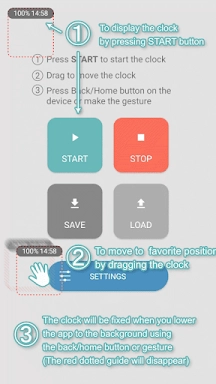
Launch the App: Open the app to see the clock appear instantly over your desktop.
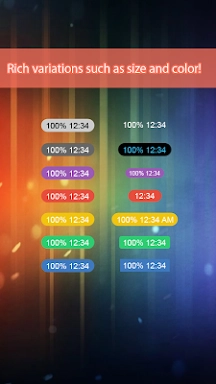
Customize Settings: Navigate to the settings menu to personalize the clock’s font, size, color, and transparency.
Position the Clock: Drag and drop the clock to any screen location that offers clear visibility.
Always on Top: Enable the "Always on Top" option to ensure the clock stays visible above all other applications.
Check the Time: Simply glance at the overlay to see the current time without disrupting your workflow.
Update Preferences: Revisit the settings anytime to tweak the clock’s look or reposition it as needed.
Troubleshooting: If the clock does not display or acts unexpectedly, refer to the app’s help guide or contact customer support.
Screenshot
Reviews
Post Comments
Latest Articles
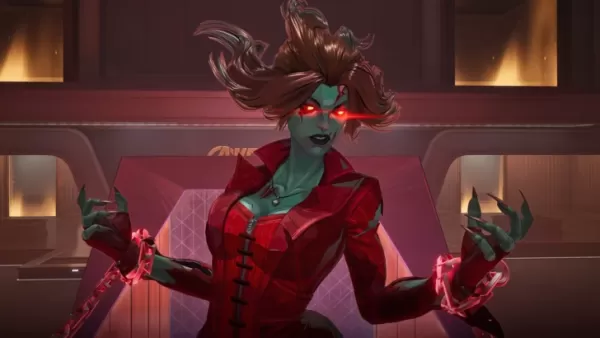
Marvel Rivals Zombie Mode Lets Players Cut Through Hordes of the Undead
Marvel Rivals introduces its inaugural PvE Zombies mode, allowing players to obliterate waves of undead foes. Continue reading for details on this exciting new game mode and the accompanying skin releases.Marvel Rivals Zombie Mode UpdatesOfficial Zom

Assassin's Creed Shadows: 40-Hour Campaign, New Game+ Planned
Assassin’s Creed Shadows will offer approximately 30-40 hours of main story content, with potential New Game+ additions planned for post-launch updates. Discover developer insights about the game’s vision and explore detailed features of the Hideout

Epic Seven Character Empowerment Guide – Best Ways to Get Stronger
Empowering your heroes in Epic Seven is essential for progressing through various game modes, including Adventure, Abyss, Hunts, PvP, and special events. Mastering each growth system helps you maximize the potential of your favorite characters while

Azur Lane Gear Tier List Guide
Gear management is one of the most underrated yet vital systems in Azur Lane. While commanders often prioritize collecting and leveling ships, it's the equipment—main guns, torpedoes, aircraft, and auxiliary units—that truly determines a fleet's comb

Volley Girls: HS Volleyball opens pre-registration on iOS and Android with a release coming soon
Pre-registration is now open for Volley Girls on iOS and Android.Features story, league, and tournament modes with live commentaryTeam-building, elemental skills, and school-based buffs add customisationDaeri Soft’s Volley Girls: HS Volleyball is gea
Avengers: Doomsday Filming Plans Detail Returning MCU Location, as Marvel Seeks UK Council Permission to Film in Windsor
A proposal submitted to a local UK council for shooting Avengers: Doomsday highlights the return of a familiar location from an earlier MCU movie.According to BBC News, Marvel has applied for permission to construct a set inside Windsor Great Park a
Apps like Overlay Digital Clock

Greendale Cinema
Personalization丨38.60M


Apex Launcher
Personalization丨15.37M



Pandrama
Personalization丨6.30M

cupfox
Personalization丨52.40M

Bangbet
Personalization丨10.00M
Latest Apps

Azul VPN Mod
Lifestyle丨19.00M



Kids Live Safe
Tools丨32.80M

Greendale Cinema
Personalization丨38.60M

Video Downloader for TikTok
Tools丨32.49M


Trending Apps
MORE +









Top News
MORE +

01
01-23
“Descenders” Codes Unlock January 2025 Content
Descenders: A Thrilling Bike Racing Game with Active Codes!
Descenders delivers exhilarating bike racing action and boasts impressive reviews. Explore diverse locations, perform daring stunts, and choose from a wide variety of bikes and gear. Realistic bike physics make riding and pulling off tric
02
02-02
Roblox Grace Commands Guide Released
Grace Roblox Game Commands: A Comprehensive Guide
Grace is a challenging Roblox experience featuring terrifying entities and demanding levels. To aid players, especially during testing, a set of in-game commands is available on test servers. This guide details all commands and their usage.
All Grac
03
11-13
Black Myth: Wukong Review Impresses Amid Guideline Debate
After four long years of waiting since its first announcement in 2020, the verdict is in for Black Myth: Wukong! Read more to learn more about the details and what other reviewers thought about the game.Black Myth: Wukong Is Almost HereBut Only On PCEver since its first trailer back in 2020, Black M
04
03-28
Top Streaming Platforms for Live Sports in 2025
Gone are the days when watching sports was as simple as turning on your TV and tuning into the big game. Today, the landscape of sports streaming has become a complex web of regional blackouts, paywalls, and exclusive rights that can leave fans feeling lost. With numerous streaming services vying fo
05
12-25
Vienna Opera Delight: Reverse 1.99 Update
Reverse: 1999 Version 1.7 Update: A Viennese Adventure Awaits!
Bluepoch Games' Reverse: 1999 is taking players on a trip back in time with its latest update, Version 1.7, launching players into the captivating world of early 20th-century Vienna in the new "E Lucevan Le Stelle" event. This update del