
Configure Gamepad for Ecos: La Brea on All Platforms
Author : Camila
Jan 20,2025
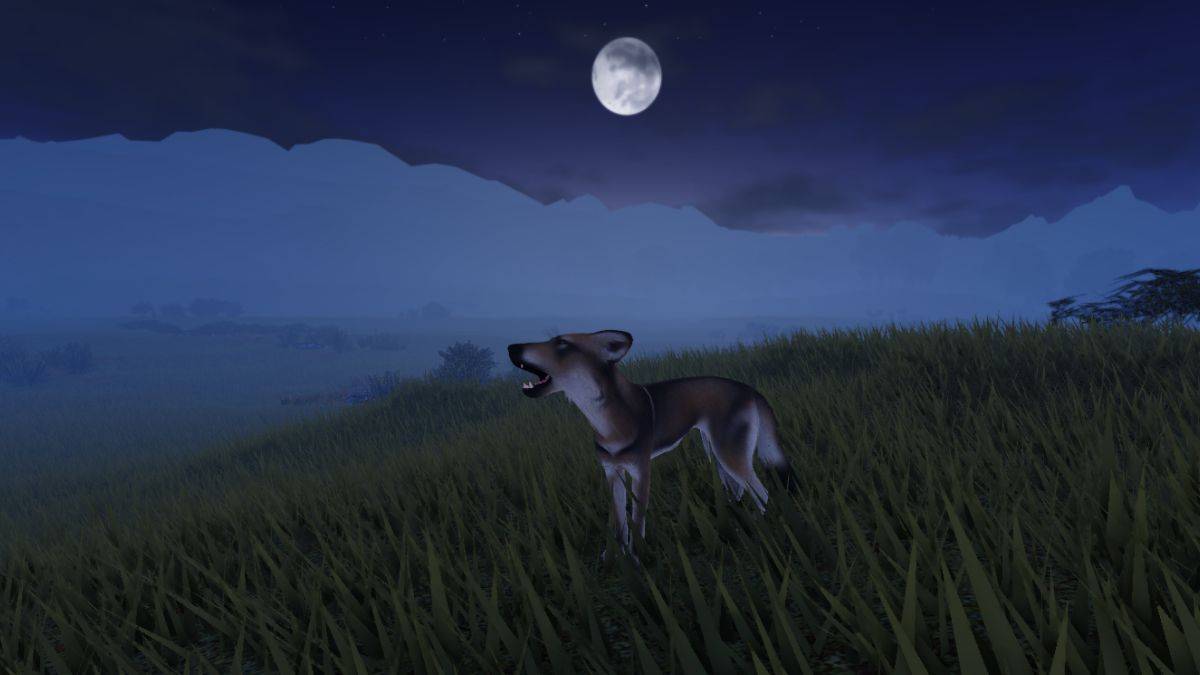
Master Ecos La Brea Controls: A Complete Keybind Guide for PC, Controller, and Mobile
Knowing your keybinds is crucial for survival in Ecos La Brea. One wrong button press could be fatal! This comprehensive guide provides a complete list of controls for PC, controller (PC use only currently), and mobile platforms.
Ecos La Brea PC Controls
This table lists all PC controls for easy reference.
| Action | Key |
|---|---|
| Run | Left Shift |
| Walk Backwards | Left CTRL |
| Mouse Lock | Left Alt |
| Trot Toggle | Z |
| Sprint Toggle | X |
| Crouch | C |
| Jump | Space |
| Primary Attack | Mouse Button 1 |
| Secondary Attack | F |
| Ring Minigame | Space |
| Eat / Drink / Interact | E |
| Scent | B |
| Rest | R |
| Stand | T |
| Flee Mode | Space |
| Broadcast | 1 |
| Alert / Friendly | 2 |
| Friendly | 3 |
| Threat | 4 |
| Aggressive / Danger | 5 |
| Action Wheel | . |
| Mark Predator / Prey | U |
| Hide HUD | H |
| Freeze Neck | – |
| Neck Turn Mode | O |
| Map | M |
| Menu | L |
| Claim Territory | P |
| Enter flee mode (predator highlighted) | Hold Jump |
| Grab / Drop Object | Tap E |
Ecos La Brea Controller Controls (PC Only)
While console release is pending, controller support is available on PC.
| Action | Button |
|---|---|
| Run | LT |
| Walk Backwards | B |
| Mouse Lock | N/A |
| Trot Toggle | X |
| Sprint Toggle | Y |
| Crouch | LS |
| Jump | A |
| Primary Attack | RB |
| Secondary Attack | RT |
| Ring Minigame | A |
| Eat / Drink / Interact | LB |
| Scent | DPad Left |
| Rest | DPad Down |
| Stand | N/A |
| Flee Mode | N/A |
| Broadcast | N/A |
| Alert / Friendly | N/A |
| Friendly | N/A |
| Threat | N/A |
| Aggressive / Danger | N/A |
| Action Wheel | DPad Up |
| Mark Predator / Prey | DPad Right |
| Hide HUD | N/A |
| Freeze Neck | N/A |
| Neck Turn Mode | O |
| Map | N/A |
| Menu | N/A |
| Claim Territory | N/A |
| Enter flee mode (predator highlighted) | Hold Jump |
| Grab / Drop Object | Tap LB |
Ecos La Brea Mobile Controls
Mobile controls are designed for intuitive gameplay.
| Action | Button |
|---|---|
| Run | Paw Button |
| Walk Backwards | N/A |
| Mouse Lock | N/A |
| Trot Toggle | N/A |
| Sprint Toggle | N/A |
| Crouch | N/A |
| Jump | Arrow Button |
| Primary Attack | Jaw Button |
| Secondary Attack | Claw Button |
| Ring Minigame | N/A |
| Eat / Drink / Interact | Food Button |
| Scent | N/A |
| Rest | N/A |
| Stand | N/A |
| Flee Mode | N/A |
| Broadcast | N/A |
| Alert / Friendly | N/A |
| Friendly | N/A |
| Threat | N/A |
| Aggressive / Danger | N/A |
| Action Wheel | Wheel Button |
| Mark Predator / Prey | N/A |
| Hide HUD | N/A |
| Freeze Neck | N/A |
| Neck Turn Mode | N/A |
| Map | N/A |
| Menu | N/A |
| Claim Territory | N/A |
| Enter flee mode (predator highlighted) | Hold Jump |
| Grab / Drop Object | Tap Eat |
Changing Keybinds
To customize your keybinds, navigate to the in-game settings menu. Select the action you wish to rebind; it will highlight light green. Then, press the desired replacement key. If the key is already assigned, the text will turn red.
Latest Articles
Schwarzenegger Surprised by Son's White Lotus Nude Scene
In classic dad fashion, Hollywood icon Arnold Schwarzenegger was just as surprised as everyone else to see his son, Patrick Schwarzenegger, showcasing his physique in Season 3 of The White Lotus."I'm watching your show, and I see you with your butt o
Marvel Rivals Bans Players for Modding After Season 1 Clampdown
Marvel Rivals players continue risking account bans by using mods despite Season 1 restrictions.Since Marvel Rivals' December launch saw tremendous success, players have persisted with unauthorized custom skins despite ban warnings. Popular modificat

Wizardry Variants Daphne Hits 2M Downloads, Offers Free Rewards
Wizardry Variants Daphne is celebrating an incredible two million downloadsClaim up to 2,000 Gems of Org and 10 Adventurer's Remains as log-in bonuses during the celebrationExplore the new Legendary Adventurers summon rate and dungeon challengeGiven
Dynasty Warriors Devs Told "Kill the Player"
Dynasty Warriors: Origins ramps up the challenge with more aggressive enemy encounters—producer Tomohiko Sho famously urged the development team to "go all out and destroy players." Discover how this philosophy reshapes the latest chapter of the leg
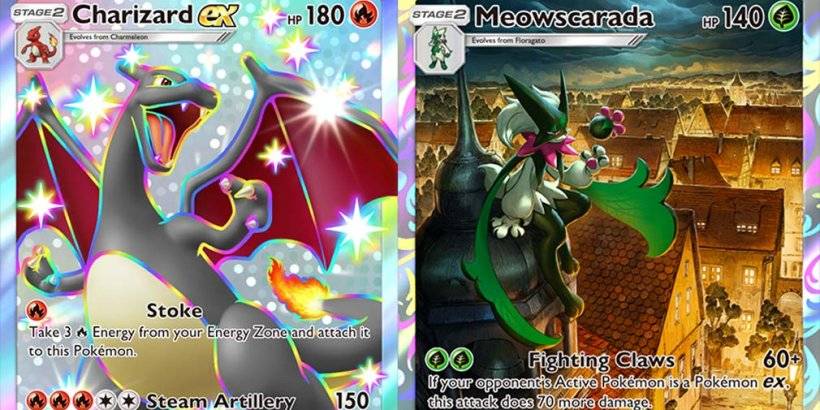
Pokemon TCG Pocket Reveals Shining Revelry, Ranked Teasers
- Shiny Pokémon variants debut in the latest expansion- Competitive Ranked Matches launching soon- Collect over 110 brand-new cardsThe dazzling Shiny Pokémon have officially arrived in Pokémon TCG Pocket, introducing more than 110 new cards to collec

GTA 6 Trailer Features New Soundtrack
Rockstar just dropped the highly anticipated second trailer for Grand Theft Auto 6, and players can't stop wondering about one thing: which track is powering the new GTA 6 trailer?
This action-packed two-and-a-half minute showcase brings Vice City's
Latest Games

Girl Hub TexasHoldem
Card丨634.40M

Lylas Curse
Casual丨159.80M
Word Shaker
Puzzle丨13.90M

Construction Simulator 4 Lite
Simulation丨904.7 MB
Solitaire Super Pack
Card丨52.97MB

Wordzee! - Social Word Game
Word丨121.5 MB

Trending Games
MORE +






![Salvation in Nightmare [v0.4.4]](https://imgs.21qcq.com/uploads/36/1719555347667e551321c26.jpg)
Top News
MORE +
01
12-25
Vienna Opera Delight: Reverse 1.99 Update
Reverse: 1999 Version 1.7 Update: A Viennese Adventure Awaits!
Bluepoch Games' Reverse: 1999 is taking players on a trip back in time with its latest update, Version 1.7, launching players into the captivating world of early 20th-century Vienna in the new "E Lucevan Le Stelle" event. This update del
02
11-13
Black Myth: Wukong Review Impresses Amid Guideline Debate
After four long years of waiting since its first announcement in 2020, the verdict is in for Black Myth: Wukong! Read more to learn more about the details and what other reviewers thought about the game.Black Myth: Wukong Is Almost HereBut Only On PCEver since its first trailer back in 2020, Black M
03
01-23
“Descenders” Codes Unlock January 2025 Content
Descenders: A Thrilling Bike Racing Game with Active Codes!
Descenders delivers exhilarating bike racing action and boasts impressive reviews. Explore diverse locations, perform daring stunts, and choose from a wide variety of bikes and gear. Realistic bike physics make riding and pulling off tric
04
12-14
Heaven Burns Red Prepares For English Release
Exciting news for RPG fans! Heaven Burns Red, the acclaimed Japanese turn-based RPG, is officially coming to a global audience! Yostar announced at Anime Expo 2024 that they'll be bringing the game worldwide. A reveal trailer for the English version was unveiled at the event.
While a specific rel
05
01-04
Pokémon Go Is Celebrating New Year’s 2025 with Festive Fireworks and More!
Pokémon Go rings in 2025 with a New Year's event! Niantic is kicking off the new year with festivities, including the New Year's 2025 event, followed by Fidough Fetch and the Sprigatito Community Day. But before all that, the Eggs-pedition Access paid event runs throughout January. For $4.99, pla